grandMA3 Timecode Setup: Art-Net Timecode from Your DJ Set
Every song in your set gets its own timecode. While a song plays, TimecodeLink sends that song's timecode to the grandMA3, following the pitch fader so the clock stays with the music. On the console you build one timecode show per song, and its cues and sequence Go's fire on their own every time you play that song.
This guide uses Art-Net, which needs nothing but a network cable. The same steps work with grandMA3 onPC. MIDI timecode and LTC are covered at the end.
Step 1: Connect TimecodeLink to your DJ software
Set up your input first: Rekordbox, Serato, Pioneer CDJ/XDJ or VirtualDJ. Load a song and press play. The timecode in TimecodeLink should start running.
Step 2: Give each song its own hour
In the Track List panel, give every song a start timecode. The simplest scheme is
one hour per song: the first song starts at 01:00:00:00, the second at
02:00:00:00, and so on. Songs never overlap, and on the console each
hour maps to one timecode show.
Align in the track list numbers a whole list in one go from a start timecode and interval you choose. Set the interval to one hour.
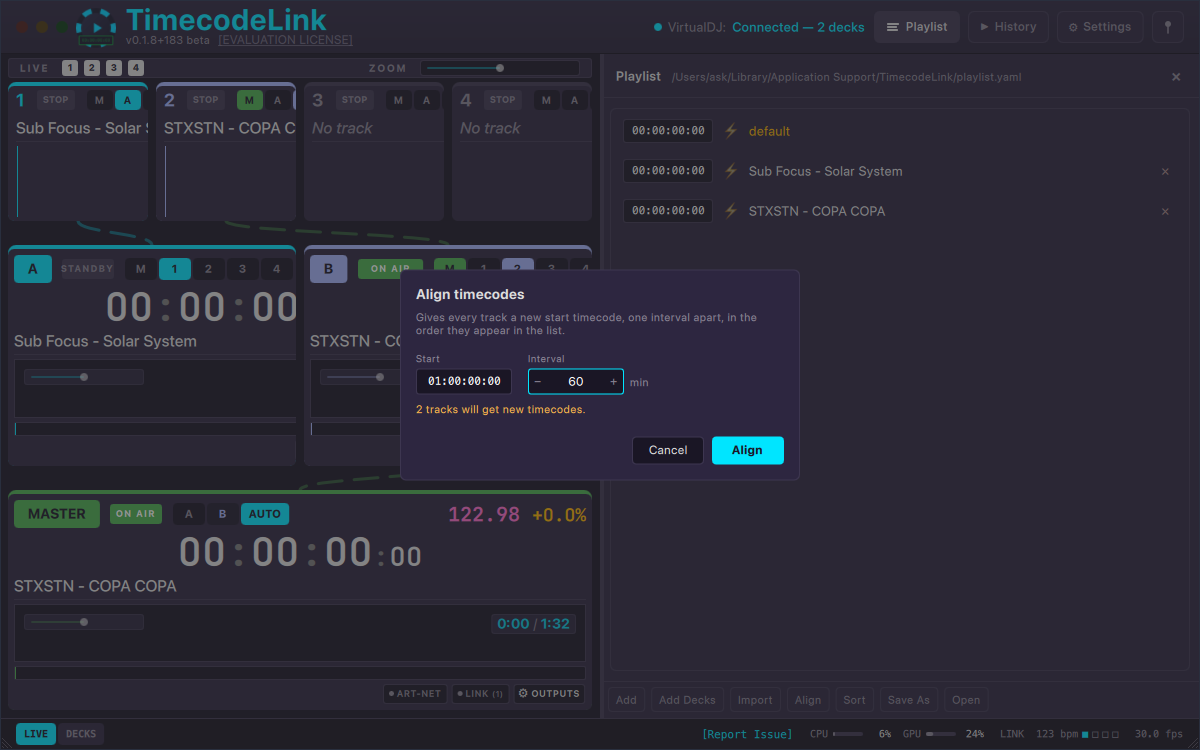
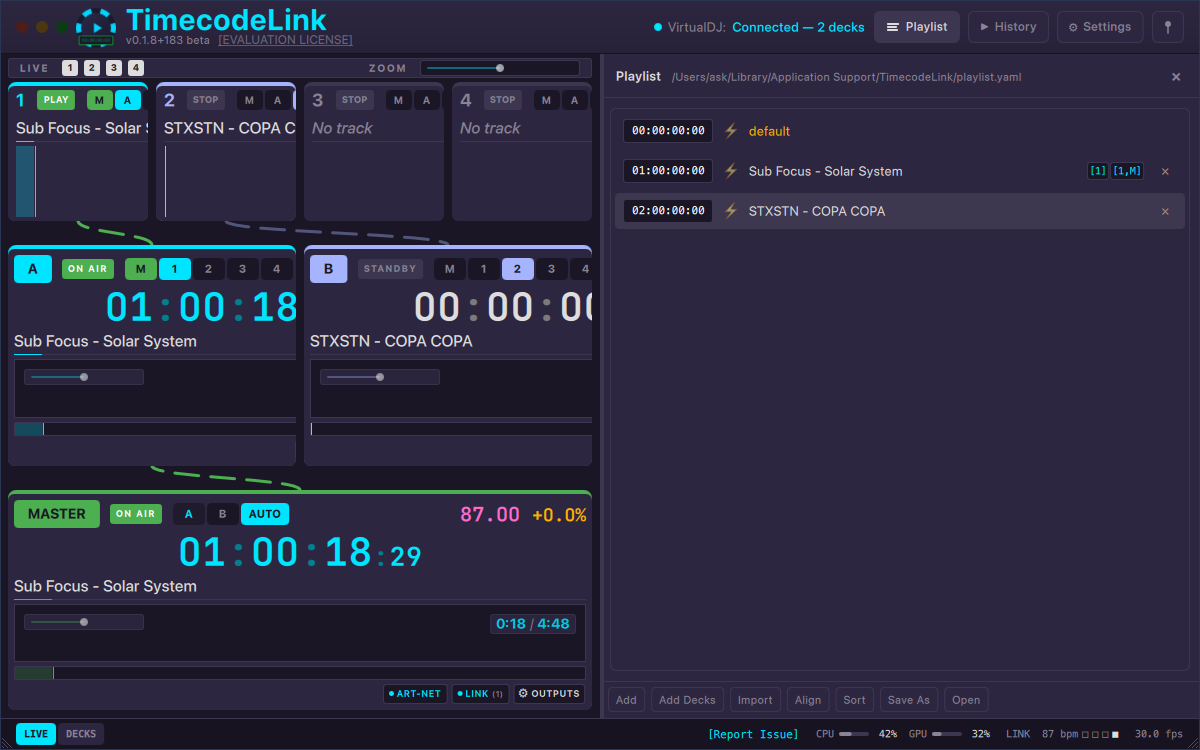
Step 3: Turn on Art-Net output
Click OUTPUTS on the master row, switch on Art-Net Output, and under Broadcast pick the network the console is connected to. Art-Net timecode is a broadcast, so there is no console IP address to enter.
Pick the network by name even if All networks is offered. When the computer is on more than one network (Wi-Fi plus a lighting network, for example), the operating system sends an all-networks broadcast out of only one of them, which may not be the console's.
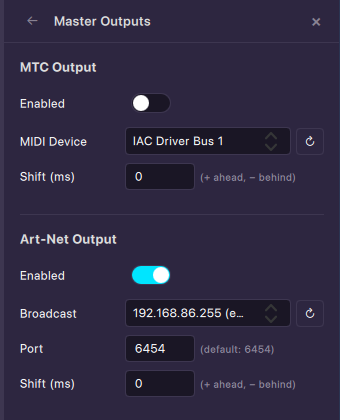
Step 4: Set up Art-Net timecode input on the grandMA3
On the console, press Menu (or tap the gear icon on the Control Bar in onPC), then open DMX Protocols and Art-Net:
- Select the Interface connected to the TimecodeLink computer.
- Turn on Enable Input.
- Add an Art-Net row, set it to Enabled and its Mode to Input.
- Set the row's Timecode Slot to 1.
Play a song. Timecode slot 1 in the Timecode Slots pool shows an Art-Net icon and the running time.
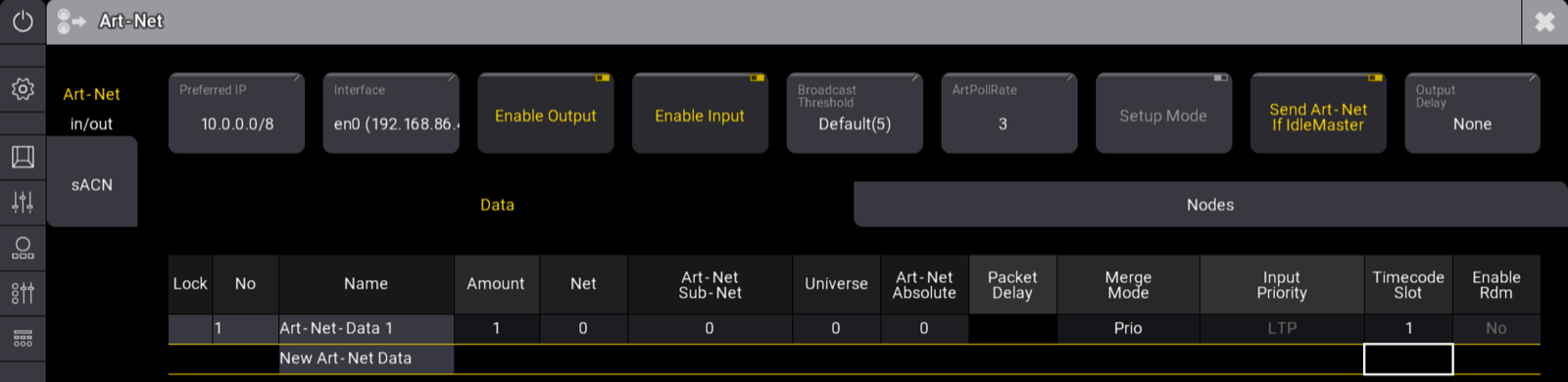

Step 5: Create a timecode show per song (TC slot and offset)
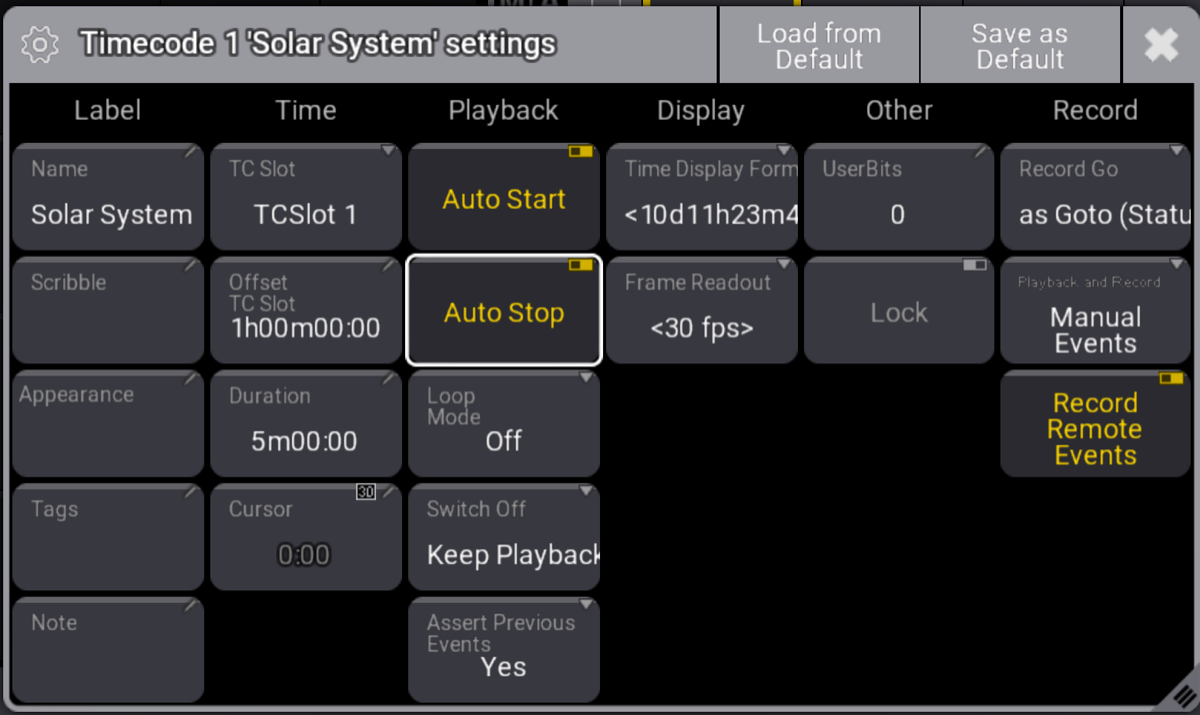
Store an empty object in the Timecode pool and open its Settings. Four settings matter here:
- Set TC Slot to TCSlot 1.
- Set Offset TC Slot to the song's hour:
1h00m00for the song at01:00:00:00. - Set Duration a little longer than the song.
- Turn on Auto Start and Auto Stop.
With the offset set, the show's timeline starts at zero when the song starts, so an event at 1m00 fires one minute into the song. Auto Start runs the show as soon as that song's timecode arrives, and Auto Stop stops it when you pause or switch songs. Repeat for every song with the next hour as the offset.
Step 6: Record your cues
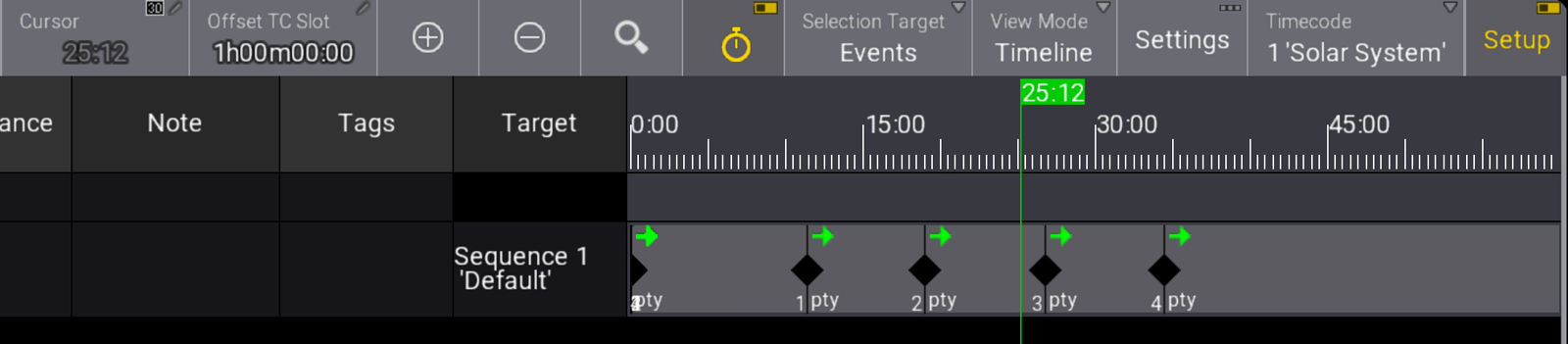
Open a Timecode Viewer window (Add Window → Tools), select the song's show, turn on Setup and press the record button. Play the song in your DJ software and fire your executors as the music goes: sequence Go's, flashes and fader moves are written into the show at the current time. Stop recording when the song ends.
From then on the cues play back by themselves whenever you play that song. You can move and edit the events on the timeline afterwards. Because the timecode follows your pitch fader, the cues stay on the beat when you play the song faster or slower.
Optional: BPM sync to a grandMA3 speed master
TimecodeLink can also drive a grandMA3 speed master with the live BPM over OSC, so effects and chasers follow the music between timecoded cues.
On the console, open Menu → In & Out →
OSC, turn on Enable Input and add a row with
port 8000, prefix gma3 and
Receive Command set to Yes.
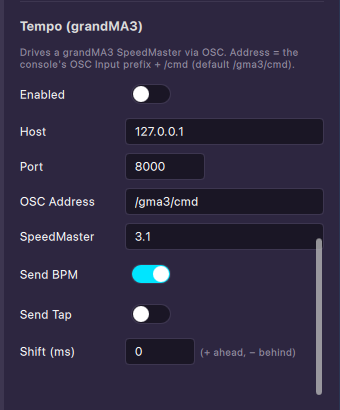
In TimecodeLink's master OUTPUTS, switch on Tempo (grandMA3) and enter the
console's IP address as Host, port 8000, OSC address
/gma3/cmd and SpeedMaster 3.1. Then assign
speed master 1 to the sequences that should follow the music.
Using LTC or MIDI timecode (MTC) instead
If Art-Net isn't an option, TimecodeLink can send MIDI timecode or LTC. Connect the MIDI output to the console's MIDI In, or the LTC audio output to its LTC input, then open Menu → Connector Configuration and set MIDI TC Mode or SMPTE Mode to In with timecode slot 1. Steps 5 and 6 stay the same.
Troubleshooting
Timecode slot 1 shows no time
First make sure the song is playing and TimecodeLink's timecode is running. Then, in the console's Art-Net menu: Enable Input on, the row Enabled with Mode set to Input, and Interface set to the network the TimecodeLink computer is on. Both machines must be on the same subnet.
If the TimecodeLink computer has more than one network connection, set Broadcast in TimecodeLink's Art-Net Output to the console's network instead of All networks.
The slot runs but the timecode show doesn't start
Open the show's settings. The Offset TC Slot must match the song's start hour in TimecodeLink, and the Duration must cover the whole song: Auto Start only reacts to timecode inside the show's range.
The speed master doesn't move
Look at the OSC row on the console: Enable Input on, port 8000, prefix
gma3 and Receive Command set to Yes. The console wants the prefix
without slashes; TimecodeLink wants the full address, /gma3/cmd.
Comparing DJ timecode tools? See who TimecodeLink is for.