Serato DJ Pro Setup Guide
TimecodeLink reads deck state, track names and playhead position from Serato DJ Pro as you play.
Step 1: Install TimecodeLink
Download and install TimecodeLink from the download page. Drag the app to your Applications folder and launch it.
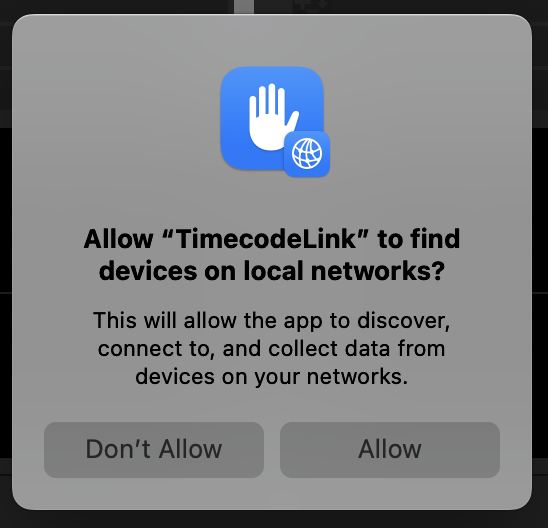
On first launch, macOS will ask for permission to find devices on local networks. Click Allow. TimecodeLink needs it to find Serato.
Step 2: Connect in Serato
Launch Serato DJ Pro on the same machine. Go to Settings > Expansion Packs and select External Control. You should see TimecodeLink in the "Available Devices" list.
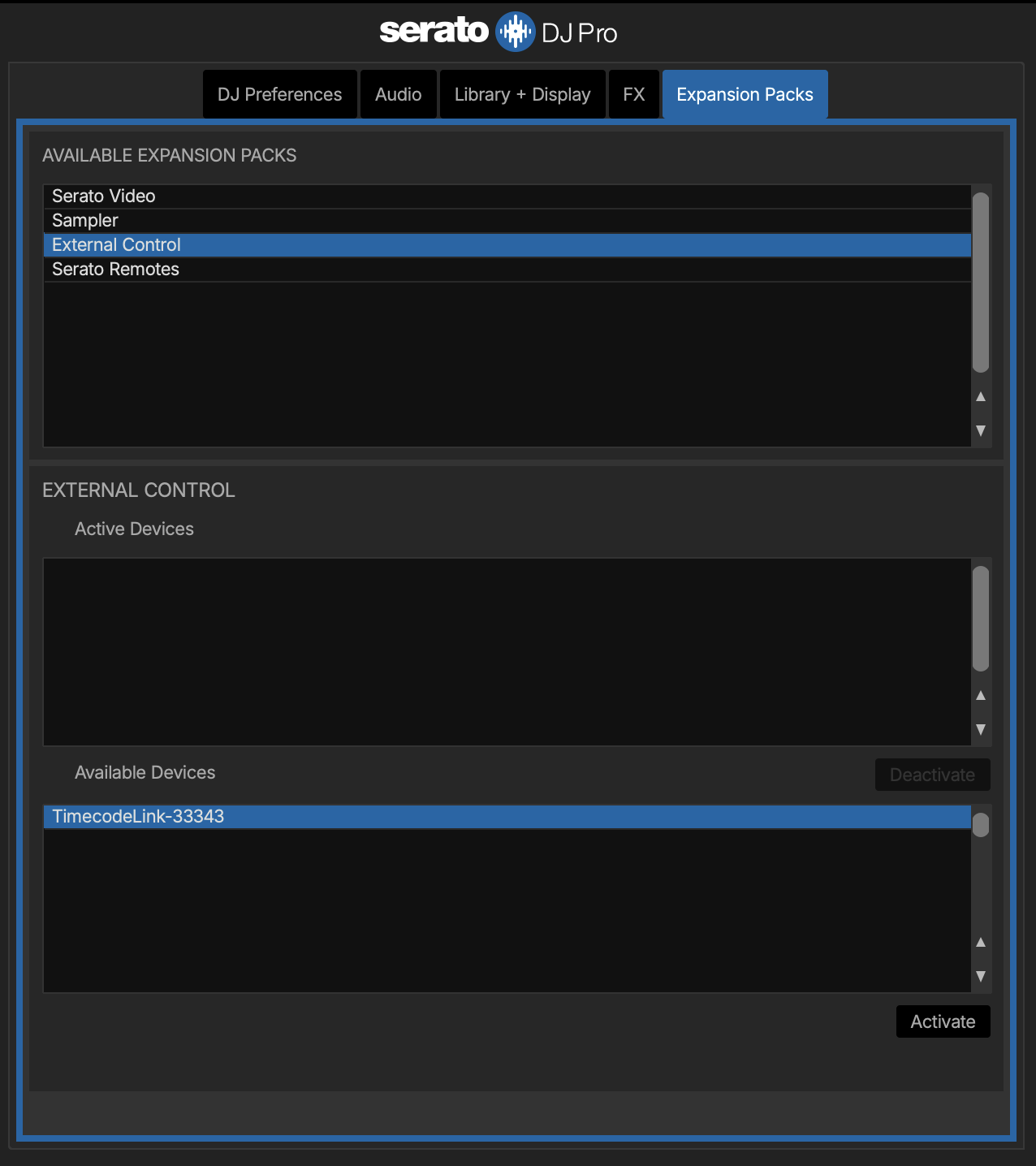
Select TimecodeLink and click Activate.
Step 3: Verify the connection
In TimecodeLink, check the status bar. You should see:
- Serato: CONNECTED
- Deck information updating in real time
- Track names visible when tracks are loaded
Step 4: Map your tracks
Drag audio files from Finder into the Track List panel. Each track gets its own start timecode, and that is what TimecodeLink outputs when the track plays.
Troubleshooting
"Serato Waiting..." status
Serato hasn't connected yet. Make sure Serato DJ Pro is running and both apps are on the same machine. Try restarting both apps.
No deck data appearing
Load a track on a deck in Serato. TimecodeLink only receives updates once a deck has something loaded.
No hot cues or beat grid on a track
TimecodeLink reads hot cues, saved loops and the beat grid from the track file, where Serato saves them once it has analysed the track. Analyse the track in Serato first. A cue you set while the track is loaded is saved when Serato unloads the track, so it shows from the next time you load it.
On macOS, TimecodeLink may ask once for access to a folder such as Downloads, Desktop or an external drive. Click Enable in the notice, then Allow when macOS asks.
Comparing DJ timecode tools? See who TimecodeLink is for.