VirtualDJ Setup Guide
VirtualDJ integration is currently in beta. It works with VirtualDJ 2025 on macOS and Windows, including the free Home edition, no Pro license required. Not recommended for mission-critical live productions without a backup timecode source.
TimecodeLink connects to VirtualDJ through a small bridge plugin that ships inside the app. The bridge installs itself into VirtualDJ and streams deck state, track information, and playback position in real time. There's nothing to download separately; you enable the bridge inside VirtualDJ and you're connected.
Step 1: Install TimecodeLink
Download and install TimecodeLink from the download page (macOS or Windows), then launch it.
Step 2: Select VirtualDJ as the input
Open TimecodeLink's Settings and choose VirtualDJ as the input. TimecodeLink locates your VirtualDJ folder and installs the bridge plugin into it automatically.
If VirtualDJ lives in a non-standard location, the status will read "VirtualDJ not found". Use the folder picker in Settings to point TimecodeLink at your VirtualDJ folder.
Step 3: Enable the bridge in VirtualDJ
Launch VirtualDJ, or restart it if it was already running when you selected the input, so it picks up the freshly installed plugin.
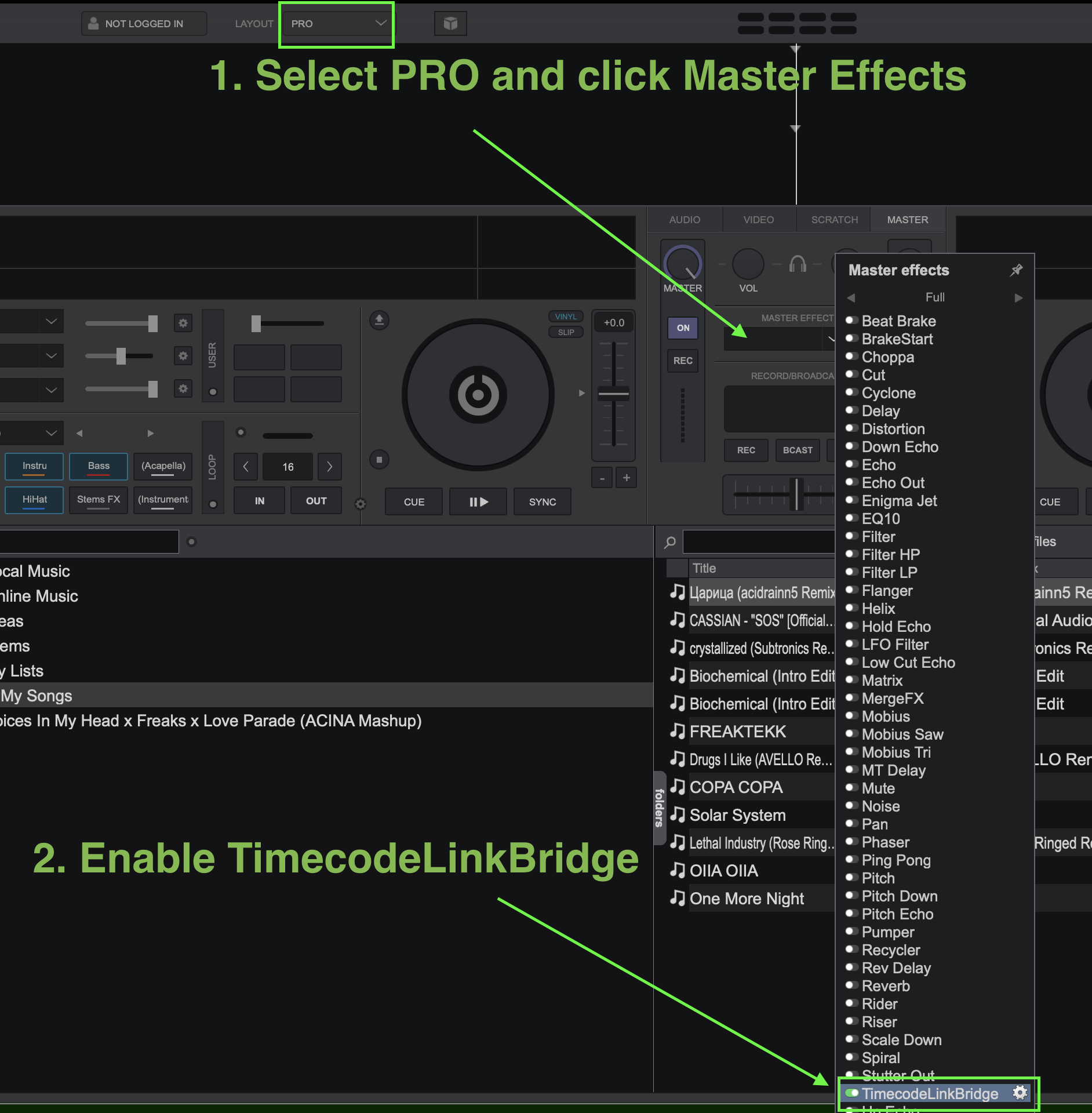
Switch VirtualDJ's layout to PRO (dropdown at the top of the window), then click the Master Effects selector in the MASTER panel and enable TimecodeLinkBridge in the effects list. Deck data starts streaming to TimecodeLink within a few seconds.
Step 4: Verify the connection
In TimecodeLink, check the status bar. You should see:
- VirtualDJ: Connected — N decks
- Deck information updating in real time
- Track names visible when tracks are loaded
Step 5: Map your tracks
Drag audio files into the Track List panel. Each track gets its own start timecode, and that is what TimecodeLink outputs when the track plays.
Troubleshooting
"VirtualDJ not found" status
TimecodeLink couldn't locate your VirtualDJ folder. Open TimecodeLink's Settings and use the folder picker to select it, then click reinstall.
"Waiting for VirtualDJ" status
VirtualDJ isn't running, or the TimecodeLinkBridge effect isn't switched on. Check the master effects panel. If TimecodeLinkBridge doesn't appear in the list, restart VirtualDJ so it picks up the installed plugin.
"Port 48111 unavailable" status
Another application (usually a second copy of TimecodeLink) is using the port the bridge sends to. Close the other instance and restart TimecodeLink.
"Restart VirtualDJ to finish plugin update"
A TimecodeLink update shipped a newer bridge. The old bridge keeps working in the meantime. Restart VirtualDJ when convenient to complete the update.
No deck data appearing
Load a track on a deck in VirtualDJ. TimecodeLink only receives updates once a deck has something loaded.
Comparing DJ timecode tools? See who TimecodeLink is for.