grandMA2 timecode from your DJ set, plus BPM to a speed master
Each song in your set gets its own hour of timecode. While a song plays, TimecodeLink sends that song's MIDI timecode (MTC) to the grandMA2, and the clock speeds up and slows down with your pitch fader. On the console you record one timecode show per song, and it replays its cues whenever that song comes back. A second output puts the live BPM on a speed master.
The grandMA2 manual lists SMPTE (LTC) and MIDI timecode as the console's timecode inputs, so this guide uses MTC. LTC is at the end. The steps work on a console and on grandMA2 onPC. On a grandMA3, follow the grandMA3 guide instead: it uses Art-Net timecode.
Step 1: Connect TimecodeLink to your DJ software
Set up the input you play on: Rekordbox, Serato (beta), Pioneer CDJ/XDJ, VirtualDJ (beta) or Denon (beta). Play a song and check that the timecode in TimecodeLink runs.
Step 2: Give each song its own hour
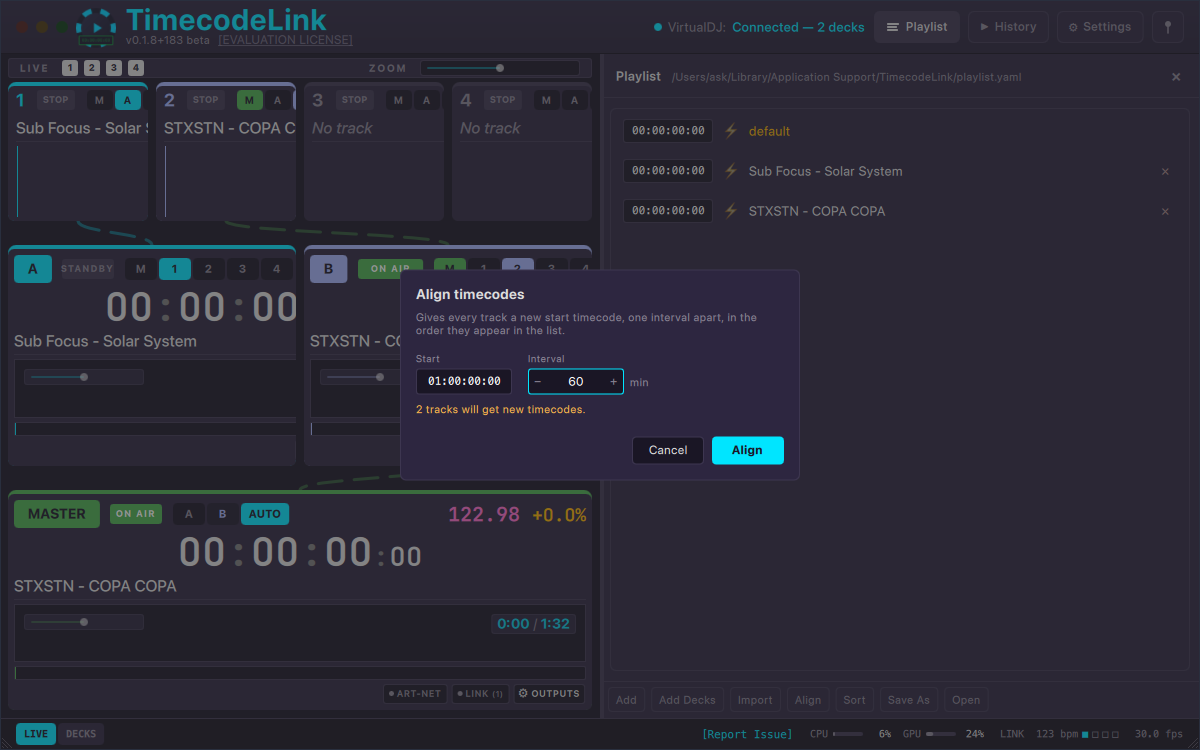
In the Track List panel, number your songs one hour apart: the first at
01:00:00:00, the next at 02:00:00:00. Align
does the whole list at once; set its interval to 60 minutes. On the console, each hour
becomes one timecode show.
Step 3: Turn on MTC output
Click OUTPUTS on the master row, switch on MTC Output and pick the MIDI Device that reaches the console:
- grandMA2 onPC on the same Windows PC: a virtual MIDI port. Create one in loopMIDI (free) and pick it here.
- A console, or onPC on another computer: a USB MIDI interface, cabled to the console's MIDI In or to the onPC computer's own MIDI interface.
Step 4: Bring MIDI timecode into a timecode slot
In a new show, the grandMA2 routes MIDI In to timecode slot 2 (and its SMPTE input to slot 1). To check or change that, open Setup → Network → MA Network Configuration, pick your station under Console or onPC, and look at the MIDI TC column.
On onPC, choose the MIDI port too: click the yellow ball at the top left of the Command screen, open Options…, and on the MIDI tab set MIDI In Device to the port from step 3.
Play a song. Slot 2 in the Timecode Slots pool now shows the running time.
Step 5: Create a timecode show per song (slot and offset)
Press Store and tap an empty object in the Timecode pool. Open the show in the Timecode Editor and tap the yellow ball in its title bar for the options:
- Slot: slot 2, the MIDI timecode slot.
- Offset: the song's hour,
1hfor the song at01:00:00:00. - Length: a little longer than the song.
- Autostart: On.
The offset shifts the whole show by that hour, so an event 30 seconds into the show fires 30 seconds into the song. Autostart runs the show as soon as its timecode comes in. If you sometimes start a song from the middle, also turn on Status Call: the show then jumps straight to the cue it should be on. Repeat for every song, one hour further each time.
Step 6: Record your cues
Tap the song's show in the Timecode pool so it turns green, then tap the record button in the timecode encoder toolbar. Play the song in your DJ software and run your executors as the music goes. Because the show listens to slot 2, its clock only runs while the song plays. Tap stop when the song ends.
A Go press is stored as a Goto to that cue, so the same cue plays back every time. Fader moves are recorded too. Move or edit events in the Timecode Editor afterwards. The timecode follows your pitch fader, so the cues land on the same beats at any tempo.
Optional: BPM to a grandMA2 speed master
TimecodeLink can drive a speed master with the live BPM, so chases and effects run at the DJ's tempo between the timecoded cues. It types the commands into the console's command line over Telnet.
On the console, open Setup → Console → Global Settings and set Telnet to Login Enabled.
In TimecodeLink's master OUTPUTS, switch on Tempo (grandMA2):
- Host: the console's IP address, or
127.0.0.1for onPC on the same PC. - Port:
30000, the console's Telnet port. - User and Password: a console user. Both are case sensitive. TimecodeLink starts with Administrator and admin.
- SpeedMaster:
3.1for speed master 1. - Send BPM: on. Send Tap adds a tap on every beat.
The BPM goes out as a whole number, as SpecialMaster 3.1 At 128, and a tap
as Learn SpecialMaster 3.1. Assign speed master 1 to the chases and effects
that should follow the music.
Using LTC instead of MTC
If the console has an LTC (SMPTE) input, you can send LTC instead: switch on LTC Output, pick the Audio Device and channel that's cabled to the console's LTC input, and set each timecode show's slot to 1, where a new show puts the SMPTE input. Steps 5 and 6 stay the same.
Troubleshooting
Timecode slot 2 shows no time
Make sure the song is playing and TimecodeLink's timecode runs. Check that MTC Output is on and sends to the right MIDI device. On the console, the MIDI TC column in MA Network Configuration says which slot MIDI In feeds; on onPC, MIDI In Device has to be the same port.
The slot runs but the timecode show doesn't start
Open the show's options. Slot has to be the slot that shows the time, Offset the song's hour in TimecodeLink, and Length long enough to cover the song. Autostart has to be on.
The speed master doesn't move
Check that Telnet is set to Login Enabled in Global Settings. If TimecodeLink reports that the login was rejected, the user or password doesn't match a console user exactly. Then check that speed master 1 is assigned to what you expect to move.
Telnet works on the same PC but not to a separate console
The firewall on the grandMA2 machine is almost always the cause. See Troubleshooting for what to allow.
FAQ
Can TimecodeLink send Art-Net timecode to a grandMA2?
TimecodeLink sends Art-Net timecode, but the grandMA2 manual lists only SMPTE (LTC) and MIDI timecode as timecode inputs. Use MTC or LTC for a grandMA2. A grandMA3 does take Art-Net timecode.
Does it work with grandMA2 onPC?
Yes. onPC takes MIDI timecode from the port picked as its MIDI In Device. On the same Windows PC, a virtual MIDI port such as loopMIDI connects the two, and the Tempo (grandMA2) output connects to 127.0.0.1.
Which DJ software does it work with?
Rekordbox, Serato DJ Pro (beta), VirtualDJ (beta), Pioneer CDJs and XDJs, and Denon players (beta). The console setup is the same for all of them.
Can I try it first?
Yes. The free trial runs for 30 days with every feature, the grandMA2 outputs included. Download it and run it; there's no sign-up.
Running a grandMA3? grandMA3 timecode setup. New to TimecodeLink? Download the free trial.
Comparing DJ timecode tools? See who TimecodeLink is for.