Import a Rekordbox Playlist with Cues
Import a Rekordbox playlist into the TimecodeLink track list in one go, with each track's cue points, file path and length. New tracks get timecodes a fixed interval apart. Tracks already in the list keep their timecodes and OSC triggers.
Step 1: Export the collection from Rekordbox
In Rekordbox, open the File menu and choose Export Collection in xml format. Save the file anywhere, the Desktop is fine.
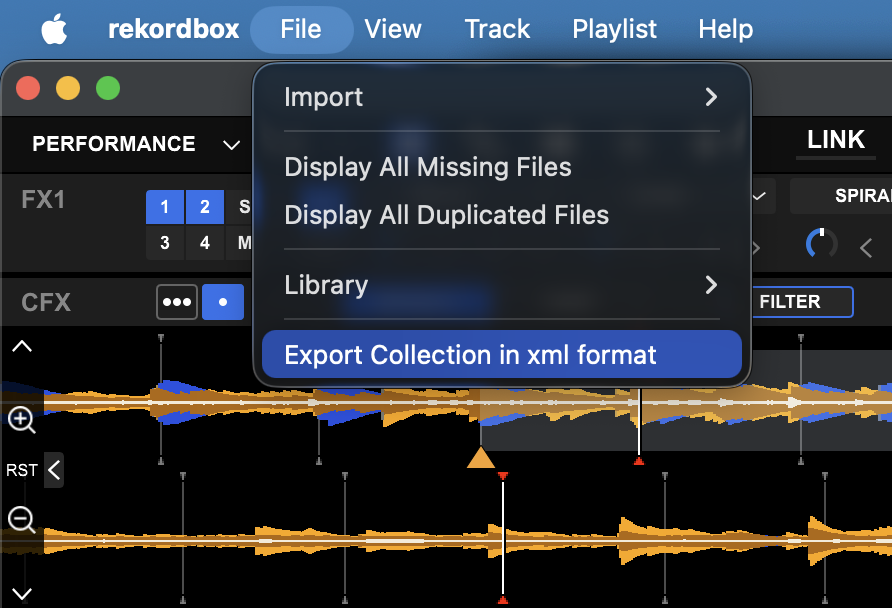
The file holds the whole collection and every playlist. You pick the playlist in TimecodeLink.
A playlist's right-click Export a playlist to a file won't work. It
saves a .txt or .m3u8 track list with no cue points.
Step 2: Open the file and pick a playlist
In the TimecodeLink track list, click Import, then Open XML file, and pick the file from Step 1. You'll see your playlist folders and playlists with their track counts. Select one and click Next.
Step 3: Set timecodes for new tracks
New tracks start at 01:00:00:00 and go 10 minutes apart, in playlist
order. You can change both. Tracks already in the list don't move, and their OSC
triggers stay. They only get fresh cues, file paths and lengths. If a timecode is
already in use, the new track takes the next free one.
Tick Don't change timecodes to import everything at
00:00:00:00 and set timecodes later by hand or with
Align.
Merge (the default) adds to the current list. Replace the whole list removes every track and its OSC triggers first, except the default track. Use Save As before replacing if you want a copy.
Step 4: Check the preview and import
The preview counts new and updated tracks and imported cues. It also warns about tracks with the same name, tracks longer than the interval, and playlist entries missing from the export. Nothing changes until you click Import.
Step 5: Import again after cues change
Export again from Rekordbox and import the same playlist. Tracks are matched by file, so a track you renamed in TimecodeLink keeps its name, timecode and triggers, and only its cues update.
Fire OSC triggers on cues
Expand a track's OSC triggers, click a trigger's time and choose At cue. The list shows hot cues A to H and the track's memory cues with their times. Pick one and click Save.
The trigger fires every time the deck lands on that cue: playing through it, pressing the hot cue, seeking onto it, or a loop that starts on it. Cues the DJ jumps past are skipped. Two presses of the same hot cue within a fifth of a second count as one.
With Rekordbox, cue triggers use the cues from the import. If the DJ moves a cue, export and import again. Unnamed memory cues are matched by their position and marked ⚠: give them a name in Rekordbox so a moved cue still matches.
Align: re-space the whole list
Align in the track list gives every track a new timecode in list order, from a start timecode and interval you choose. Align moves timecodes you may have set by hand, so the dialog shows how many tracks will change before you apply it.
Troubleshooting
I can't find "Export Collection in xml format"
It's in the File menu in the Rekordbox menu bar, not in a playlist's right-click menu. If it isn't there, update Rekordbox to the latest 7.x or write to [email protected].
"This file is a plain track list with no cues"
The file is a .txt or .m3u8 from a playlist's
right-click export. Export again with File → Export Collection in xml format.
"This export has no playlists"
The collection has no playlists. Add the tracks to a playlist in Rekordbox and export again.
A track shows "file not on this computer"
That's fine. The file path comes from the computer the export was made on and is kept for reference. During a show TimecodeLink matches tracks by name, not by file.
Two tracks with the same name
An original and an extended mix can share a name in Rekordbox. Both get imported and flagged, but only the first one in the list can match during a show. Rename one of them in TimecodeLink if both get played.
Cues disappeared after someone else edited the playlist
Playlists with imported cues need TimecodeLink 0.1.8 or newer on every computer that edits them. Older versions drop the cues and file paths when they save. Import the playlist again to get them back. Timecodes and OSC triggers are kept.
A cue trigger has an amber border and never fires
The cue it points to isn't on the track: the hot cue slot is empty, or the memory cue was renamed or removed. Hover the trigger to see where TimecodeLink looked, then pick the cue again.